
Step-by-step instructions to installing TeamMobile! on your tablet.
Step 1: Connect your device to the Internet. You may have to connect your device to your wireless network, or connect a network cable to the device. Please contact your network administrator if you need help.
Step 2: Enter the following URL in your browser to download/run the TeamMobileInstall.exe program on your tablet.
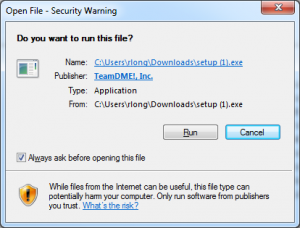
You may see the following or something similar depending on what software you have installed. In this case, click Run to bypass the warning message.
Step 3: Enter your Information.
TeamMobile! Setup
| User | Enter the UserID. This user must be in TeamDME! |
| Password | Enter the password for the User. |
| Company No | Enter the Company Number. This can be found in TeamDME! XL under Help, About. |
Press Ok. Wait for TeamMobile to install on your tablet. Once finished, you will see “Setup Complete.” You are now ready to begin using the tablet by clicking on the TeamMobile! icon.
Mobile Tablet Specifications
- MS Windows 10 Pro 64-bit
- 10″ diagonal or larger multi-touch screen
- 4GB Memory
- 8.0 MP Rear-facing autofocus camera
- Powerful processor to run signature capture