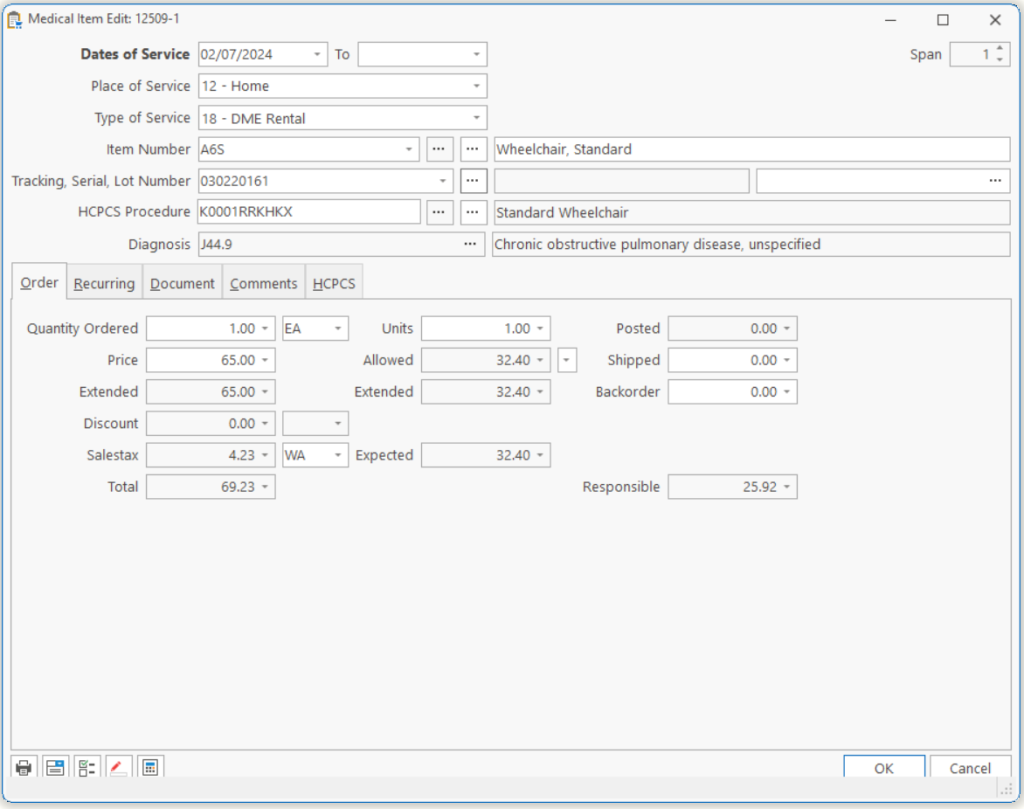
The order item edit card is where you will add, delete, and make changes to individual items within the order.
| Date of Service |
The dates of service for this billing period. (From/To) TRAP: Many insurance payors require that dates of service do not span years, span accounting periods or in some cases even span months. |
| Span | Displays the number of days between the beginning and ending dates of service. This is helpful when entering the units based on the number of days in the month. |
| Place of Service | This is where you select the Place of Service for this item. |
| Type of Service | This is where you select the Type of Service for this item. |
| Item Number | The item number for the product or service being provided. If you don’t know the item number, you can click on the ellipse button where you can search on any column to find your item. |
| Item Description | The description of the item being provided. This will normally be automatically entered from the inventory item description. |
| Tracking |
The Tracking Number of the item if the item normally carries a Tracking Number. If the item is not designated as a Tracked Item in the Item record, you will not be able to enter a Tracking Number. TIP: If you don’t know which Tracking Number will be selected to fill this order, you can leave the Tracking Number blank until you deliver the item. |
| Lot Number |
Click the ellipse button to add Lot Numbers. If the Item is not designated as a Lot Number Item in the Item record, you will not be able to enter a Lot Number. |
| HCPCS Procedure |
The HCPCS procedure code and Modifiers for the item you are supplying. TIP: Normally the HCPCS procedure code will be entered automatically based on the HCPCS Tie. TIP: You can also click the first ellipse button to select a HCPCS Procedure code. Then you can click the second ellipse button to add more modifiers. Note: Always enter your Procedure Code in the order/position of modifiers in the Fee Schedule. Since K0011RR and K0011RRKF are both valid fee schedules codes, entering K0011RR, and K0011RRKHBPKF would return the amount for K0011RR instead of the higher amount for K0011RRKF. You would need to enter K0011RRKFKHBP to receive the K0011RRKF amount. |
| ICD-10 Diagnosis |
The diagnosis that is primarily responsible for the patient needing the item or service. TIP: The diagnosis will always default to the most appropriate diagnosis if you have setup appropriate relationships, or the first code in the Customer record. TIP: You can also click the Dropdown button to see all the diagnoses in the Customer record or click the ellipse button to see all Diagnosis code, and/or add a new code to the Customer record. |
| Convert Rental To Sale |  Convert a Rental to Sale; If the item is a Capped Rental, changes the TOS=12 when Billings Allowed reaches 13, sets Billings Allowed to 13. If the Item is not Capped, changes the TOS=12 immediately, changes modifiers to NU, set Price = U&C, Billings Allowed = Current Billings. Convert a Rental to Sale; If the item is a Capped Rental, changes the TOS=12 when Billings Allowed reaches 13, sets Billings Allowed to 13. If the Item is not Capped, changes the TOS=12 immediately, changes modifiers to NU, set Price = U&C, Billings Allowed = Current Billings. |
| Mark |  Marks the Order Line Item as shipped complete. Marks the Order Line Item as shipped complete. |
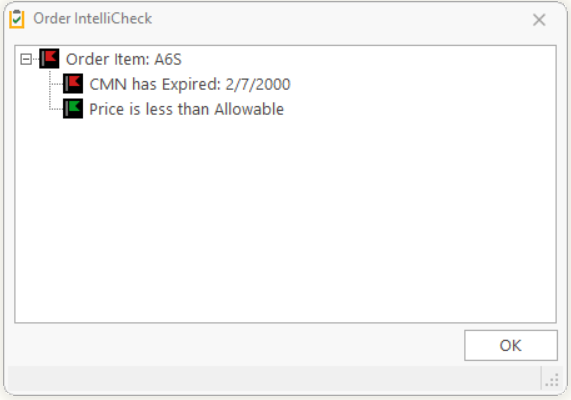
| Intellicheck |  Clicking this button will show errors on this Order Line Item. You can keep this window up while fixing your order. Clicking this button will show errors on this Order Line Item. You can keep this window up while fixing your order. |
 |
|
| Unit Calculator |  The unit calculator. Click here for further information. The unit calculator. Click here for further information. |
Tell us what you think.
You must be logged in to post a comment.