• Tutorials
    • Forms, Navigation
    • Forms, Popup and Context Menus
    • Forms, Color of Fields
    • Forms, Changing the Font
    • Forms, Customizing
    • Forms, Printing Reports
    • Forms, Send Email
    • Forms, Help
    • Grids, Navigation
    • Grids, Scrollbars
    • Grids, Functions
    • Grids, Functions, Refresh
    • Grids, Functions, New Wizard
    • Grids, Incremental Search
    • Grids, Selecting Multiple Records
    • Grids, Find and Find Next
    • Grids, Filters
      • Filters, Creating a New
      • Filters, Getting Fancy
      • Filters, Saving and Reusing
      • Filters, Default Filters
    • Grids, Printing Reports
    • Grids, Customizing
    • Menus, Shortcut Keys
    • Forms, Form Letters
      • How to print a Form Letter, Richtext
      • How to print a Form Letter, PDF
      • How to create your own Form Letter
  • Webinars
  • Training
    • Windows XL Training
    • Mobile Delivery
  • What’s New
  • Follow us on Twitter

TeamDME! XL Help

  • System
    • Company
    • Postal Codes
    • Task
    • User Security
    • Dashboard
    • Report Designer
  • Inventory
    • Item
    • Item Category
    • Item Department
    • Item Manufacturer
    • Item Location
    • Tracked Item
    • Activity
      • Physical Count
      • Item Adjustment Edit
      • Service Transaction Edit
      • Item Transfer Edit
    • Reports
  • Orders
    • Diagnosis Code
    • HCPCS Procedure Code, Edit
    • HCPCS Procedure Modifier
    • HCPCS Coverage Criteria List
    • HCPCS Fee Schedule
    • Physician
    • Payor
    • Therapist
    • Facility
    • Quote
    • Medical Order
    • Point-of-Sale
    • Recurring
    • Claim Pending
    • Claim History
    • Reports
  • Receivable
    • Customer
    • Salesperson
    • Referral
    • Nonallowed Reason
    • Responsible Reason
    • Adjustment Reason
    • Payment Type
    • Payment
    • Reports
      • Aged Receivable Reports
      • Revenue Reports
      • Audit Reports
      • Finance Fee
      • Customer Statement
      • Collection Letter
  • Purchase Orders
    • Purchase Order
    • Purchase History
  • Payables
    • Vendor
    • Unposted Invoice
    • Unpaid Invoice
    • Reports
      • Aged Payable
      • Open Payable
      • Cash Requirements
      • IRS 1099 Forms
  • Ledger
    • Chart of Account
    • Journal Unposted
    • Journal History
    • Bank Register
    • Reports
      • Balance Sheet
      • Income Statement
      • Trial Balance
  • Windows
You are here: Home / Payables / Table / Unposted Invoice / How to Reconcile Payable Invoices to Purchase Orders.
«« Unposted Invoice Edit, Remit ToHow to Reconcile Partial Shipments to Payable Invoices. »»

How to Reconcile Payable Invoices to Purchase Orders.

frmpayableunpostededit.jpg

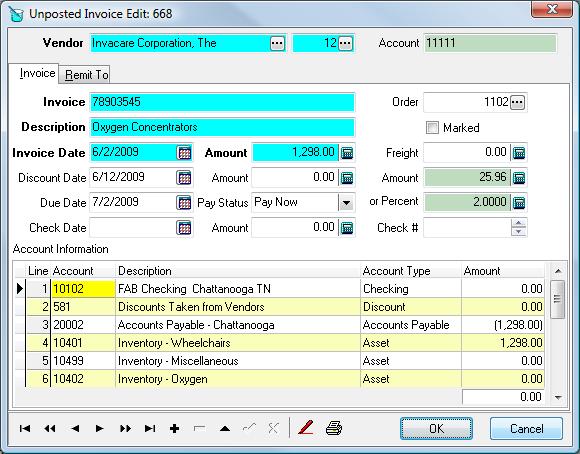
When entering a Payable Invoice resulting from a Purchase Order, you’ll want to answer several questions:

  1. Did we received the product associated with this Invoice and in good condition?
  2. Have we been invoiced the expected quantity and price?
  3. Have we already received an Invoice for this shipment? We want to make sure we do not double pay an Invoice.
Step 1 As you create the Payable Invoice for the vendor, enter your Purchase Order number in the Order field. As you do, the system will calculate the expected Invoice Amount based on the quantity of items received and the price you expected. The system will also look up the Ledger Inventory Account for each item in our Purchase Order and disperse the Invoice Amount to the proper Account IDs.
Step 2 Compare the Invoice Amount calculated from your Purchase Order to the Amount of your Invoice. If the two amounts agree, or differ only by the amount of Freight, you can continue without further research, confident that the Invoice is valid.
Page Tags: How, Invoice, Purchase, Reconcile
«« Unposted Invoice Edit, Remit ToHow to Reconcile Partial Shipments to Payable Invoices. »»

Tell us what you think. Cancel reply

You must be logged in to post a comment.

RETURN TO TOP

Copyright 2014-2026 · TeamDME!, Inc. · All Rights Reserved · Log in