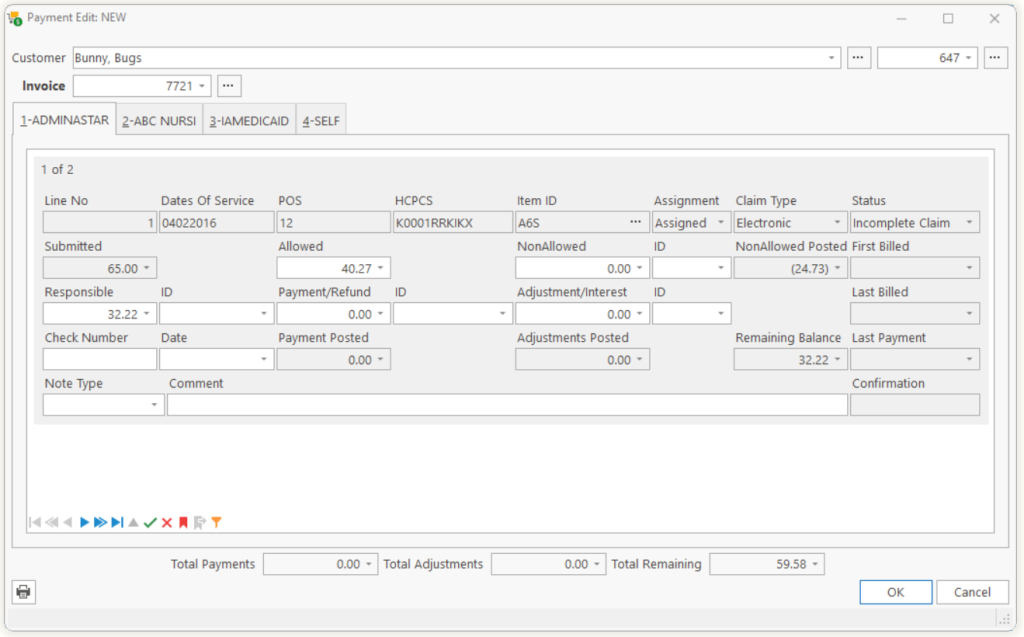
This allows you to enter payments received and make adjustments to outstanding claims/invoices.
| Customer | The name and account number of the customer. | ||
| Invoice | The invoice number to apply the payment to. | ||
| Tabs 1, 2, 3, and 4 | Each tab represents one of the payor(s) for the Claim/Invoice; 1-Primary, 2-Secondary, 3-Tertiary and 4-Patient (SELF). | ||
| Line No | Lists what line number the payment is being applied to. | ||
| Status | Shows the current status of the Line with this payor. | ||
| First, Last Billed | Date of the First and Last time we submitted this claim to the payor. | ||
| Last Payment | Date of the Last Payment received for this payor. | ||
| Submitted | Amount which was submitted to the payor(s) for the line. | ||
| Allowed | Amount the payor has allowed for this item.
Note: The Allowed amount and the Responsible amount for the Payor are connected. Changing one will affect the other based on the Responsibility percentage. Note: Allowed and Nonallowed are only applicable to the Primary payor and will not be displayed on other tabs. They are also not applicable to Customer charges (SELF) or Non-assigned/Complementary claims and will be disabled. |
||
| Nonallowed/ ID | Amount the payor has nonallowed for this item, and why the Nonallowed adjustment was made.
Note: Allowed and Nonallowed amounts are connected. Changing one will affect the other. |
||
| Nonallowed Post | Amount of nonallowed charges which has been posted. | ||
| Responsible/ ID | Amount the payor is responsible for of the Allowed amount, and why a change was made (if one was).
Note: The Responsibility amounts of the Primary/Secondary, Secondary/Tertiary, etc. are connected. Reducing the Responsibility of the Primary automatically transfers the amount reduced to the Secondary payor. You can see this by clicking on Tab-2. So, if you have two payors and you want to move some amount of Responsibility to the Patient, you will need to reduce the Primary, reduce the Secondary (which was transferred automatically) which will send the amount to Tab-3 for the Patient (SELF). |
||
| Payment/ Refund/ ID | Amount of the payment received, and what type of payment.
Tip: This can decrease the Remaining Balance for payments received, as well as increase it such as for refunds or bounced checks. |
||
| Adjustment/ Interest/ ID | Amount of the adjustment.
Tip: This can reduce the Remaining Balance for adjustments, as well as increase it such as for Interest Earned. |
||
| Check Number/Date | Check number and Check Date of the payment. | ||
| Payment Posted | Shows any payment that was posted previous. | ||
| Adjustment Posted | Shows any adjustment that was posted previous. | ||
| Remaining Balance | The amount that is remaining for this payor. | ||
| Note Type /Comment | Select a note type and a Comment that you would like to save with this payment. Once the payment is posted, this will be copied to the Claim Edit, Comments tab. | ||
| Confirmation | Confirmation number of Credit Card payment. | ||
|
Note: Changing the Responsible Amount for a Payor will resubmit the Claim to the Payor.
Tell us what you think.
You must be logged in to post a comment.