• Tutorials
    • Forms, Navigation
    • Forms, Popup and Context Menus
    • Forms, Color of Fields
    • Forms, Changing the Font
    • Forms, Customizing
    • Forms, Printing Reports
    • Forms, Send Email
    • Forms, Help
    • Grids, Navigation
    • Grids, Scrollbars
    • Grids, Functions
    • Grids, Functions, Refresh
    • Grids, Functions, New Wizard
    • Grids, Incremental Search
    • Grids, Selecting Multiple Records
    • Grids, Find and Find Next
    • Grids, Filters
      • Filters, Creating a New
      • Filters, Getting Fancy
      • Filters, Saving and Reusing
      • Filters, Default Filters
    • Grids, Printing Reports
    • Grids, Customizing
    • Menus, Shortcut Keys
    • Forms, Form Letters
      • How to print a Form Letter, Richtext
      • How to print a Form Letter, PDF
      • How to create your own Form Letter
  • Webinars
  • Training
    • Windows XL Training
    • Mobile Delivery
  • What’s New
  • Follow us on Twitter

TeamDME! XL Help

  • System
    • Company
    • Postal Codes
    • Task
    • User Security
    • Dashboard
    • Report Designer
  • Inventory
    • Item
    • Item Category
    • Item Department
    • Item Manufacturer
    • Item Location
    • Tracked Item
    • Activity
      • Physical Count
      • Item Adjustment Edit
      • Service Transaction Edit
      • Item Transfer Edit
    • Reports
  • Orders
    • Diagnosis Code
    • HCPCS Procedure Code, Edit
    • HCPCS Procedure Modifier
    • HCPCS Coverage Criteria List
    • HCPCS Fee Schedule
    • Physician
    • Payor
    • Therapist
    • Facility
    • Quote
    • Medical Order
    • Point-of-Sale
    • Recurring
    • Claim Pending
    • Claim History
    • Reports
  • Receivable
    • Customer
    • Salesperson
    • Referral
    • Nonallowed Reason
    • Responsible Reason
    • Adjustment Reason
    • Payment Type
    • Payment
    • Reports
      • Aged Receivable Reports
      • Revenue Reports
      • Audit Reports
      • Finance Fee
      • Customer Statement
      • Collection Letter
  • Purchase Orders
    • Purchase Order
    • Purchase History
  • Payables
    • Vendor
    • Unposted Invoice
    • Unpaid Invoice
    • Reports
      • Aged Payable
      • Open Payable
      • Cash Requirements
      • IRS 1099 Forms
  • Ledger
    • Chart of Account
    • Journal Unposted
    • Journal History
    • Bank Register
    • Reports
      • Balance Sheet
      • Income Statement
      • Trial Balance
  • Windows
You are here: Home / Receivable / Table / Customer / How to Setup Responsibility Percentages.
«« Customer Edit, WizardHow to Delete a Customer. »»

How to Setup Responsibility Percentages.

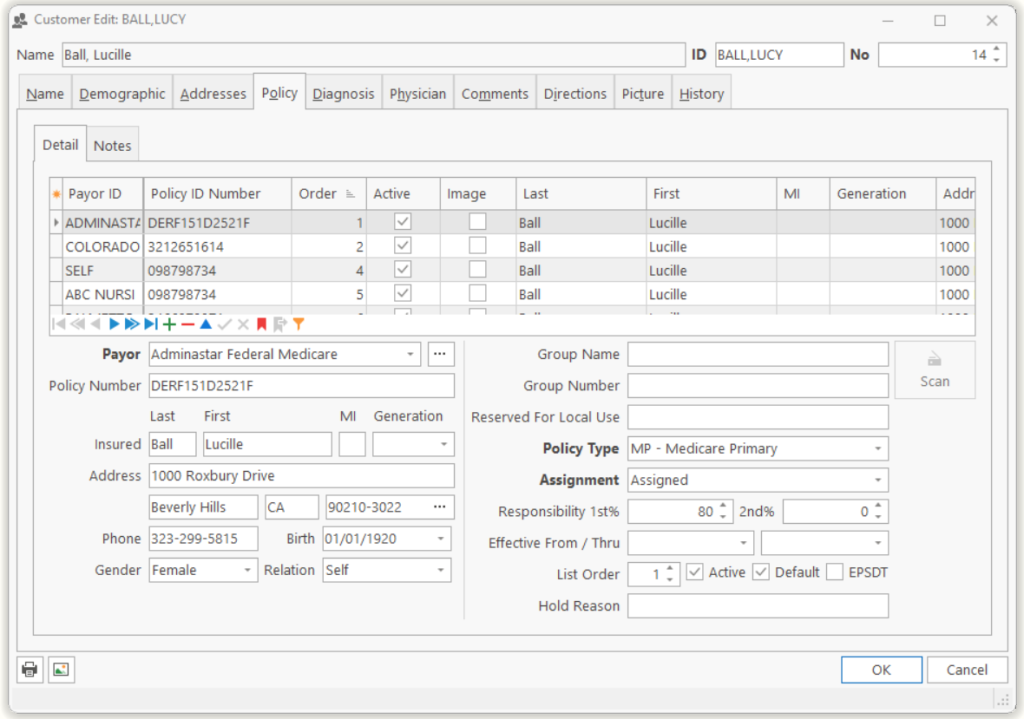
Each payor can be a primary or a secondary payor for different medical orders. Each payor added to a customer has 2 boxes; Responsibility 1st and Responsibility 2nd. If you change the percentages from 100% then this will split the total amount allowed between the payors in the accounts receivable table. If you do not change the percentages, then the first payor will have 100% of the allowed amounts in the account receivable table.
While the cursor is on Palmetto:

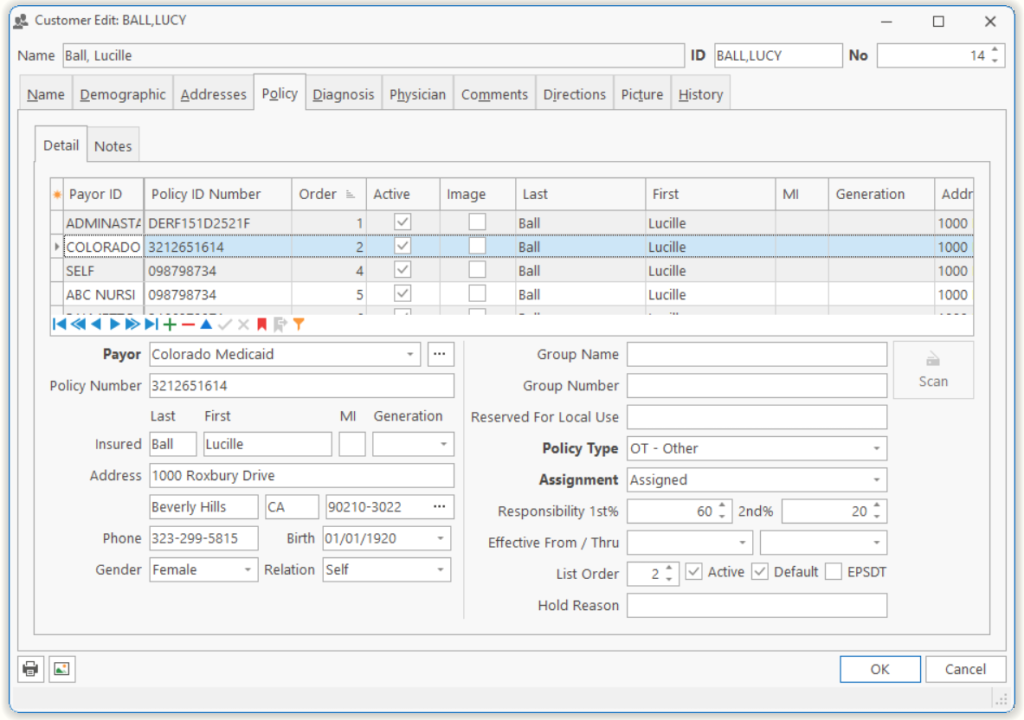
Responsibility 1st% What is the percentage of the allowable that Medicare will pay, for this customer, if Medicare is ever the primary payor for an order?
Responsibility 2nd% What is the percentage of the allowable that Medicare will pay, for this customer, if Medicare is ever the secondary payor for an order?

While the cursor is on Colorado Medicaid:

Responsibility 1st% What is the percentage of the allowable that Colorado Medicaid will pay, for this customer, if Colorado Medicaid is ever the primary payor for an order?
Responsibility 2nd% What is the percentage of the allowable that Colorado Medicaid will pay, for this customer, if Colorado Medicaid is ever the secondary payor for an order?

In the above examples, Medicare pays 80% of the allowable as a primary payor. That is Medicare’s standard %. Medicare pays 0% of the allowable as a secondary payor. The customer does not have Medicare as a secondary payor. Colorado Medicaid pays 60% of the allowable as a primary payor. An example of this is if the customer is getting diapers. Medicare does not pay for diapers. On the order, the user will remove Medicare from the order making Colorado Medicaid the primary payor. Colorado Medicaid pays 20% of the allowable as a secondary payor. It is the balance of the 80% that was entered for Medicare.

Responsibility 1st%

Responsibility 2nd%

Palmetto

80.00%

0.00%

Colorado Medicaid

60.00%

20.00%

Note: If a claim has a balance, with a percentage of the allowable for the primary and secondary payor, the secondary payor will not be billed until the primary is paid or adjusted off.

Note: If a claim has a balance, with a percentage of the allowable for a primary and ONLY has SELF as a 2nd payor, the customer WILL be billed before the primary is paid or adjusted off. If you do not want to bill the customer before the primary is paid, leave the responsibility 1st and 2nd at 100%

Page Tags: Customer, Percentage, Responsibility
«« Customer Edit, WizardHow to Delete a Customer. »»

Tell us what you think. Cancel reply

You must be logged in to post a comment.

RETURN TO TOP

Copyright 2014-2026 · TeamDME!, Inc. · All Rights Reserved · Log in