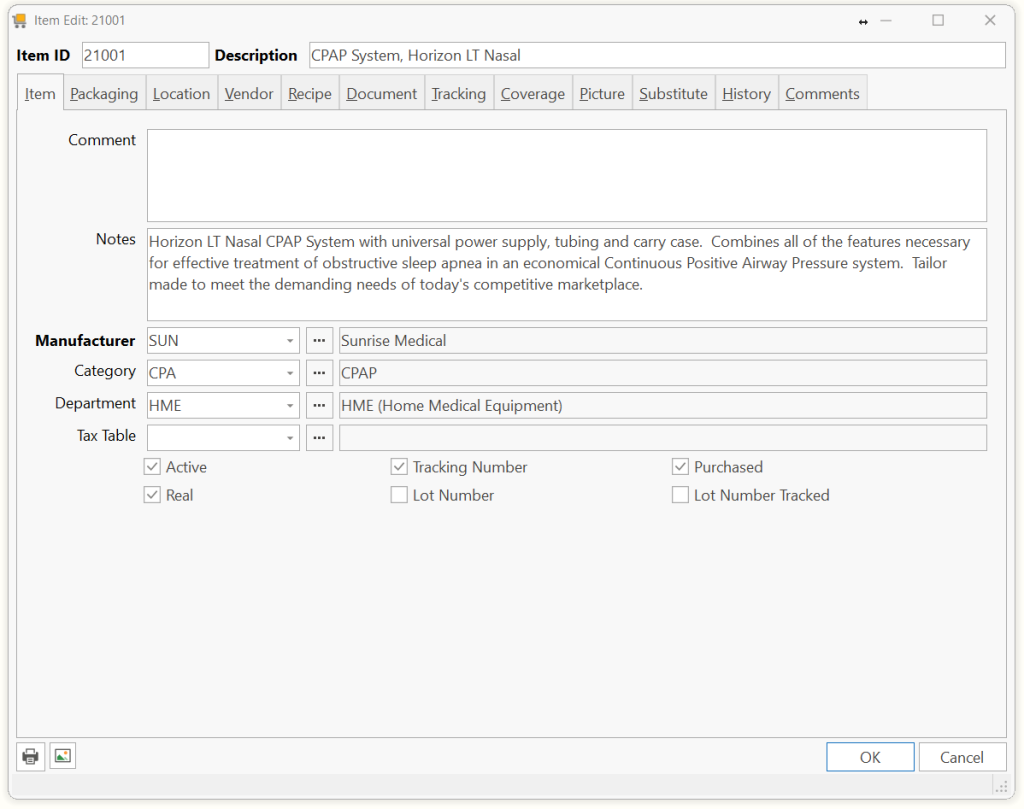
| Item ID | A group of numbers, characters, or combination that identifies the Item to you.Note: We recommend using the manufacturer’s product number, as they have already identified the product. |
| Description | Example: Cane Quad with Invacare Grip or CPAP System, Horizon LT Nasal |
| Comment | The Comment is used for an extended description of the Item (512 characters). This prints on delivery tickets, invoices and some reports where your customer may see it. |
| Notes | The Notes are additional description for internal use-only (512 characters). It prints on some work orders and other internal forms. |
| Manufacturer | The manufacturer of the item. This will print on the delivery ticket.Note: This is used to allow you to find similar Items from the same manufacturer, and to print the Aged/Revenue by Item Manufacturer reports. |
| Category | The category this item fits in.Note: This is used to allow you to find similar Items within the same category, and to print the Aged/Revenue by Item Category report. |
| Department | The department the item fits in.Note: This is used to allow you to find similar Items within the same department, and to print the Aged/Revenue by Item Department reports. |
| Tax Table | The tax table defines how sales tax should be calculated for this item.Note: Leave this blank, if the item does not dictate how sales tax should be calculated.
Example: Oxygen is defined by the state as a drug, and as such is never dispensed without a prescription, and is therefore always use a Non-taxable table. |
| Active | Check it the Item is active, available to purchase and sell. You may or may not have any items on hand.Example: Invacare has discontinued this product, but you still have several on-hand and available to sell. You may want to Inactivate the item so that a warning message will appear if you try to purchase it. |
| Real | Check if the item is a physical, or actual piece of equipment, as opposed to a virtual item number.Example: Real items would be anything you can put your hands on, concentrators, beds, canes, crutches, walkers. Virtual items may be needed for billing and tracking, but are not physical products, such as Delivery or Repair Charges, Travel time and O2 Setup. |
| Tracking Number | Check if the item requires Tracking Number when providing this item.Example: Generally, the more expensive HME equipment is identified by a Tracking Number (also referred to as Asset Number or Serial Number). However, the Tracking Number which is assigned by your company may differ from the Serial Number assigned by the Manufacturer. Items such as Oxygen Concentrators, CPAP machines and hospital beds are generally tracked, and therefore will require a Tracking Number. The lessor expensive items such as canes, crutches and walkers are not tracked because tracking takes more effort. |
| Lot Number | Check if the item requires the user to record a Lot Number when providing this item.Example: Insulin, Test Strips, Enteral and Parenteral nutrition have Lot Numbers, and you are required by the FDA to record and be able to identify who purchased a particular Lot Number in the event of a recall.
See also: Audit by Lot Number. |
| Purchased | Check if the Item is purchased from a vendor/manufacturer as opposed to manufactured/assembled by your staff. |
| Lot Number Tracked |
Tell us what you think.
You must be logged in to post a comment.