• Tutorials
    • Forms, Navigation
    • Forms, Popup and Context Menus
    • Forms, Color of Fields
    • Forms, Changing the Font
    • Forms, Customizing
    • Forms, Printing Reports
    • Forms, Send Email
    • Forms, Help
    • Grids, Navigation
    • Grids, Scrollbars
    • Grids, Functions
    • Grids, Functions, Refresh
    • Grids, Functions, New Wizard
    • Grids, Incremental Search
    • Grids, Selecting Multiple Records
    • Grids, Find and Find Next
    • Grids, Filters
      • Filters, Creating a New
      • Filters, Getting Fancy
      • Filters, Saving and Reusing
      • Filters, Default Filters
    • Grids, Printing Reports
    • Grids, Customizing
    • Menus, Shortcut Keys
    • Forms, Form Letters
      • How to print a Form Letter, Richtext
      • How to print a Form Letter, PDF
      • How to create your own Form Letter
  • Webinars
  • Training
    • Windows XL Training
    • Mobile Delivery
  • What’s New
  • Follow us on Twitter

TeamDME! XL Help

  • System
    • Company
    • Postal Codes
    • Task
    • User Security
    • Dashboard
    • Report Designer
  • Inventory
    • Item
    • Item Category
    • Item Department
    • Item Manufacturer
    • Item Location
    • Tracked Item
    • Activity
      • Physical Count
      • Item Adjustment Edit
      • Service Transaction Edit
      • Item Transfer Edit
    • Reports
  • Orders
    • Diagnosis Code
    • HCPCS Procedure Code, Edit
    • HCPCS Procedure Modifier
    • HCPCS Coverage Criteria List
    • HCPCS Fee Schedule
    • Physician
    • Payor
    • Therapist
    • Facility
    • Quote
    • Medical Order
    • Point-of-Sale
    • Recurring
    • Claim Pending
    • Claim History
    • Reports
  • Receivable
    • Customer
    • Salesperson
    • Referral
    • Nonallowed Reason
    • Responsible Reason
    • Adjustment Reason
    • Payment Type
    • Payment
    • Reports
      • Aged Receivable Reports
      • Revenue Reports
      • Audit Reports
      • Finance Fee
      • Customer Statement
      • Collection Letter
  • Purchase Orders
    • Purchase Order
    • Purchase History
  • Payables
    • Vendor
    • Unposted Invoice
    • Unpaid Invoice
    • Reports
      • Aged Payable
      • Open Payable
      • Cash Requirements
      • IRS 1099 Forms
  • Ledger
    • Chart of Account
    • Journal Unposted
    • Journal History
    • Bank Register
    • Reports
      • Balance Sheet
      • Income Statement
      • Trial Balance
  • Windows
You are here: Home / Orders / Order / Medical Order / How does the Unit Calculator, Enteral calculate Units?
«« Medical Order, Print, Patient Eligibility Batch, RequestHow to Customize Delivery Tickets. »»

How does the Unit Calculator, Enteral calculate Units?

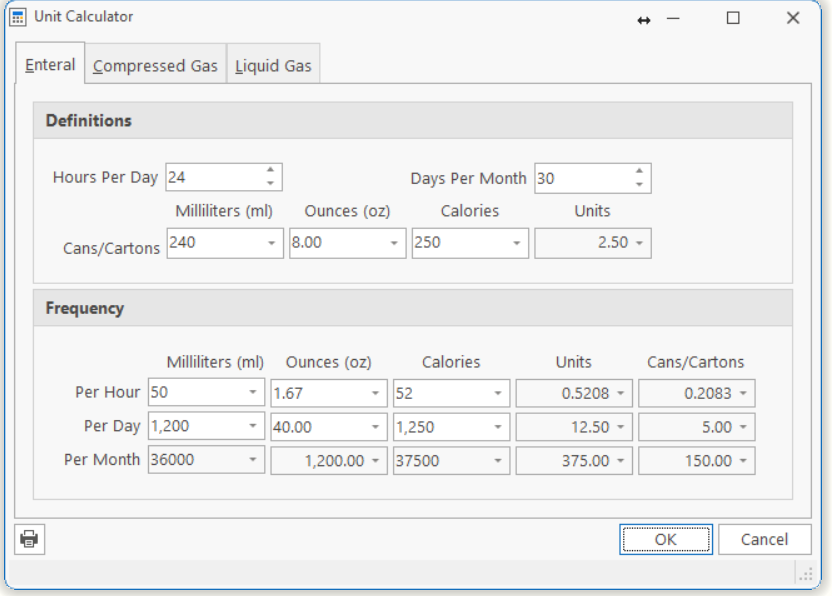
Sometimes a customer will question how the Unit Calculator, Enteral tab calculates the number of cans needed and the Units to bill Medicare (or another payor).

In simple terms, the calculator identifies how many cans/cartons a patient will require based on physician’s prescription for the time period. The Units is also calculated in the same way, and these are displayed for you in the calculator as the example shows.

However, when you transfer this information to an order, we will round the quantity up to the next whole number as you cannot provide ½ of a can or bag of product, and providing less than the patient requires would not be appropriate. We will then round the Units to the nearest whole number as allowed by Medicare rules (confirmed by Omnbudsman).

Medicare Rules

The following example may be found in the Medicare Manual, Chapter 61, “Reporting Units of PEN Formulas” and confirmed by a conversation with the Region C Omnbudsman on 5/1/06:

For all nutrients and solutions billed, the date range for the dates of service should always correspond to the actual number of days billed. If the data does not match, we will check for a change in orders. If a revision certification is not attached, your claim will be denied for either a revised certification form or to verify the number of units billed. All enteral nutrient codes are established in 100 calorie increments, therefore, they must be billed and processed in 100 calorie increments—one unit for every 100 calories supplied.

For enteral nutrients, always indicate the number of units supplied. Calculate as follows:

Number of Calories Prescribed ÷ 100 x Number of Days Billed = Number of Units

Example: Prescribed calories: 1500 per day for 30 days (one month), so 1500 Calories ÷ 100 x 30 Days = 450 Units for the month

If a physician orders more than one nutrient in the same category, the charges must be combined with the caloric units for these nutrients on one line. Each nutrient and the calories per day must be listed separately on the certification form.

Example: The certification indicates Osmolite at 750 calories per day and Ensure at 750 calories per day. Both nutrients are in the same category and should be coded as B4150, combined and submitted as follows: 1500 calories ÷ 100 x 30 Days = 450 Units for the month

Our Summary: Medicare will reimburse only for the number of calories ordered by the physician, divided by 100 and multiplied by the number of days supplied. Medicare will not reimburse for partial cans of unused product.

Page Tags: Calculator, Enteral, Unit
«« Medical Order, Print, Patient Eligibility Batch, RequestHow to Customize Delivery Tickets. »»

Tell us what you think. Cancel reply

You must be logged in to post a comment.

RETURN TO TOP

Copyright 2014-2026 · TeamDME!, Inc. · All Rights Reserved · Log in