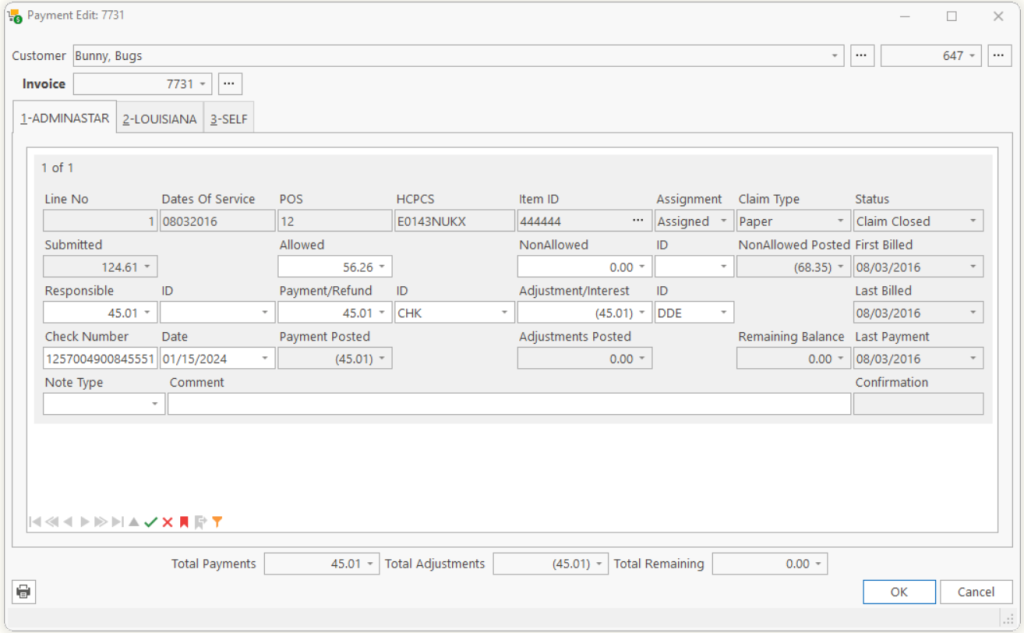
At times a customer may return a defective product and request a refund. In this case, we do not want the inventory On hand quantity to be increased, so we can issue a refund directly.
The process of entering a refund for a defective item is similar to Reversing a Payment, but we want the end result to be a zero balance instead of an open balance.
| Step 1 | Find the correct Invoice and click on the Payor tab for the associated Payor. |
| Step 2 | Enter the refund amount in the Payment/Refund field with CHK or other payment type in the Payment ID field.
Note: If your company has an ID specific to refund, you will want to use this code. Tip: Since the refund is increasing the amount the Payor owes, opposite from a normal payment, we’ll enter it as a negative amount. This will reverse the payment, leaving a Remaining Balance. Check that you have entered the refund correctly by confirming the Remaining Balance has returned to original amount owed by the Payor. |
| Step 3 | Since the product was defective, we want to adjust the Invoice, enter this in Adjustment/Interest with a reason for the adjustment in ID. Example: If this happens frequently, you may want to create a DDE account for Defective/Damaged Equipment, otherwise you may want to use the EIB for Error in Billing. |
Tell us what you think.
You must be logged in to post a comment.